Submitting Grades as a Centre Administrator
To submit Grades as Centre Administrator, for a selected Centre/Subject, follow these steps:
- On the Grade Entry screen, in the Allocations section, select the relevant Qualification from the Qualifications drop-down list. This selection filters your available Subjects.
- Select the relevant Subject from the Subject drop-down list.
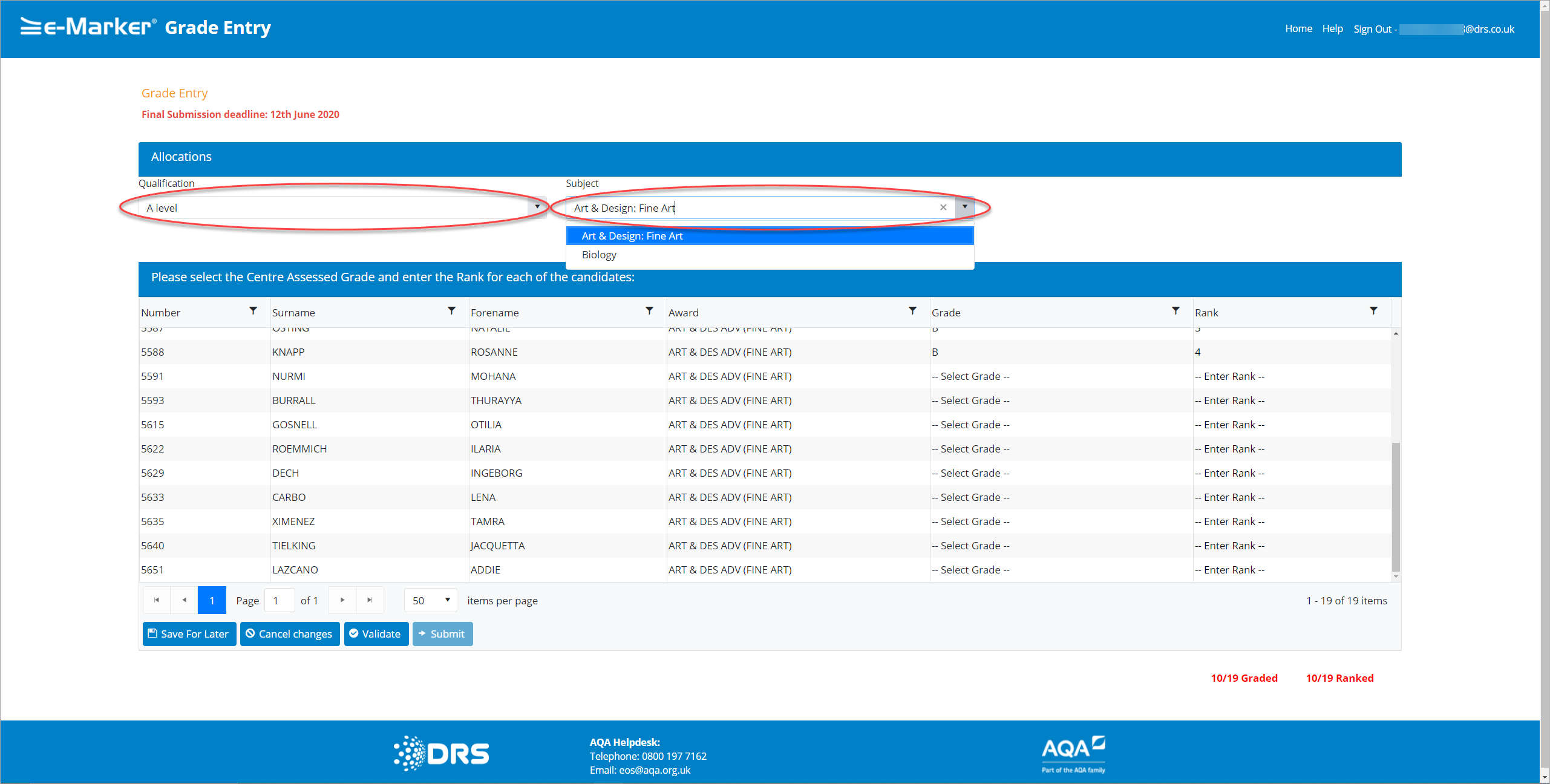
Centre Administrator - Subjects
The Grade Entry screen refreshes and displays the relevant Candidates based on your selection. The pagination of the screen enables the first 50 rows to be edited, but there is a capability to view all of the rows. The screen can be re-ordered by clicking the column header names, and the default view is ordered by the Candidate Number.
Note: It is important to mention that when the Grading column is ordered, 'A' is listed above 'A*' as strict alphanumeric ordering is enforced. Also, 'U' is listed below the 'No Submission' option.
You can also order the table by two fields, in other words, clicking the Grade and Rank column headers sequences the table by Grade/Rank order. For example, G9/R1'. 'G9/R2', 'GR8/R1'. The Status Bar shows the information: X/Y Graded and X/Y Ranked and Z Duplicates. The data is colour-coded, with red meaning that work is outstanding and green when all of the issues are resolved.

Centre Administrator - Select Grade/Rank
- Click in the Grade field that you want to select a Grade for.
- From the Grade drop-down list, select the appropriate Grade for the Award (not for the Subject). The drop-down list is pre-populated with the appropriate Grades. Select one of: '(0-9', 'A-G+U','Pass/Merit/Distinction', 'AA/AB/BA', and 'No submission', which is used for withdrawn Candidates and no Rank is selected for those cases.) relating to the Award as set out in the imported Gradeset.
Note: You can filter any of the fields on the Grade Entry screen to locate specific Grades. The following screenshotscreenshot provides an example of a Filter on fields.
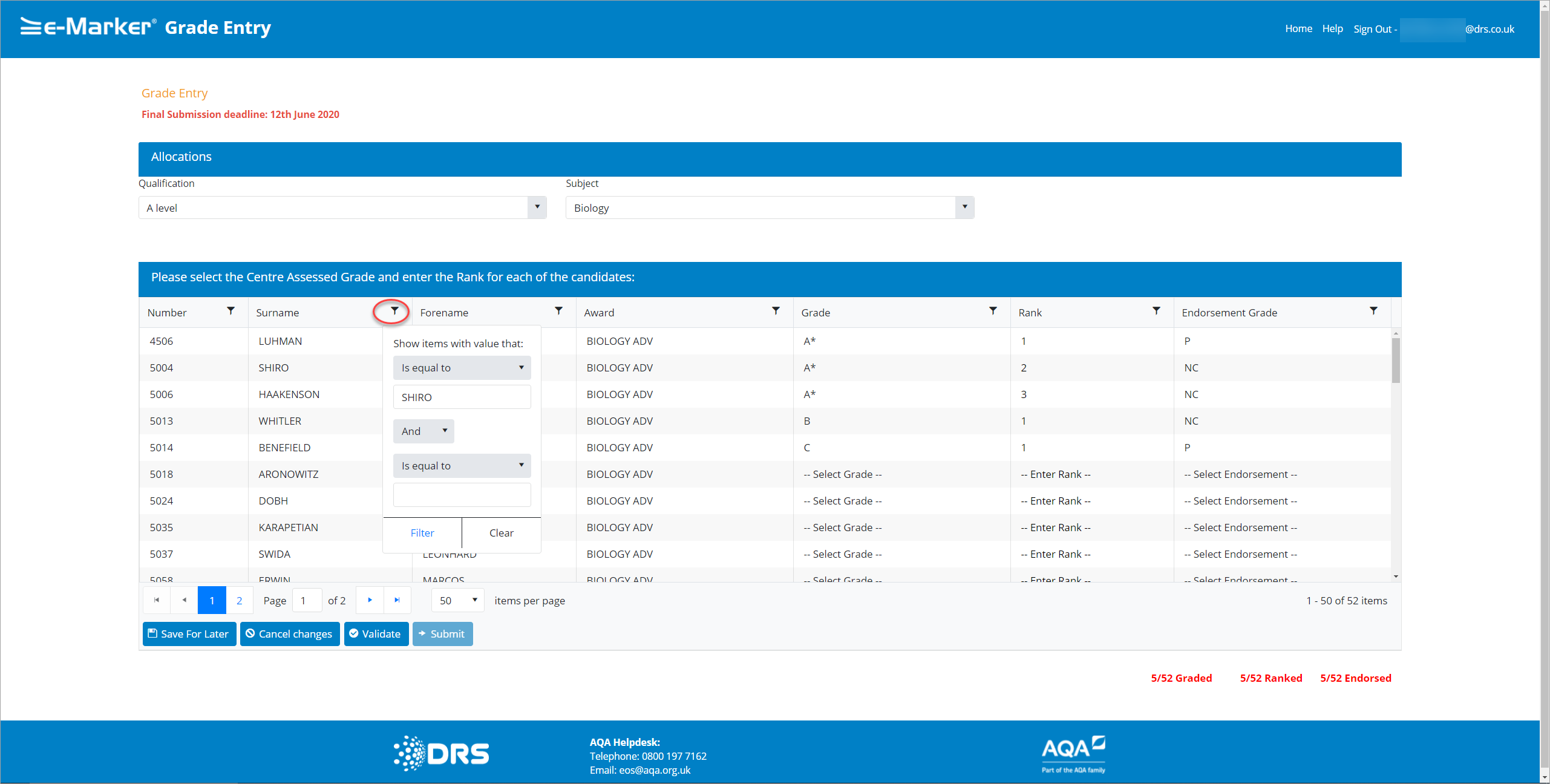
Centre User - Filter Fields
For Combined Subjects, the list displays double values relating to appropriate Gradeset for their Tier. The following screenshotscreenshot provides an example of a Combined Subject drop-down list.
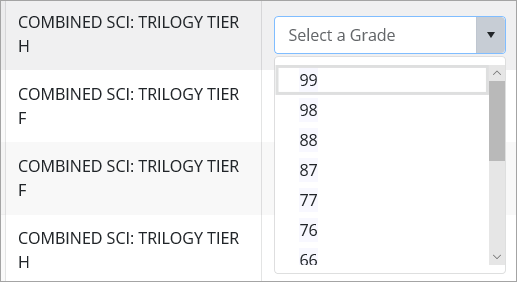
Centre User - Combined Subjects
The Grade Entry screen refreshes and the information in the Status Bar updates. In this case, you must validate the Grade entry by clicking the Validate button.
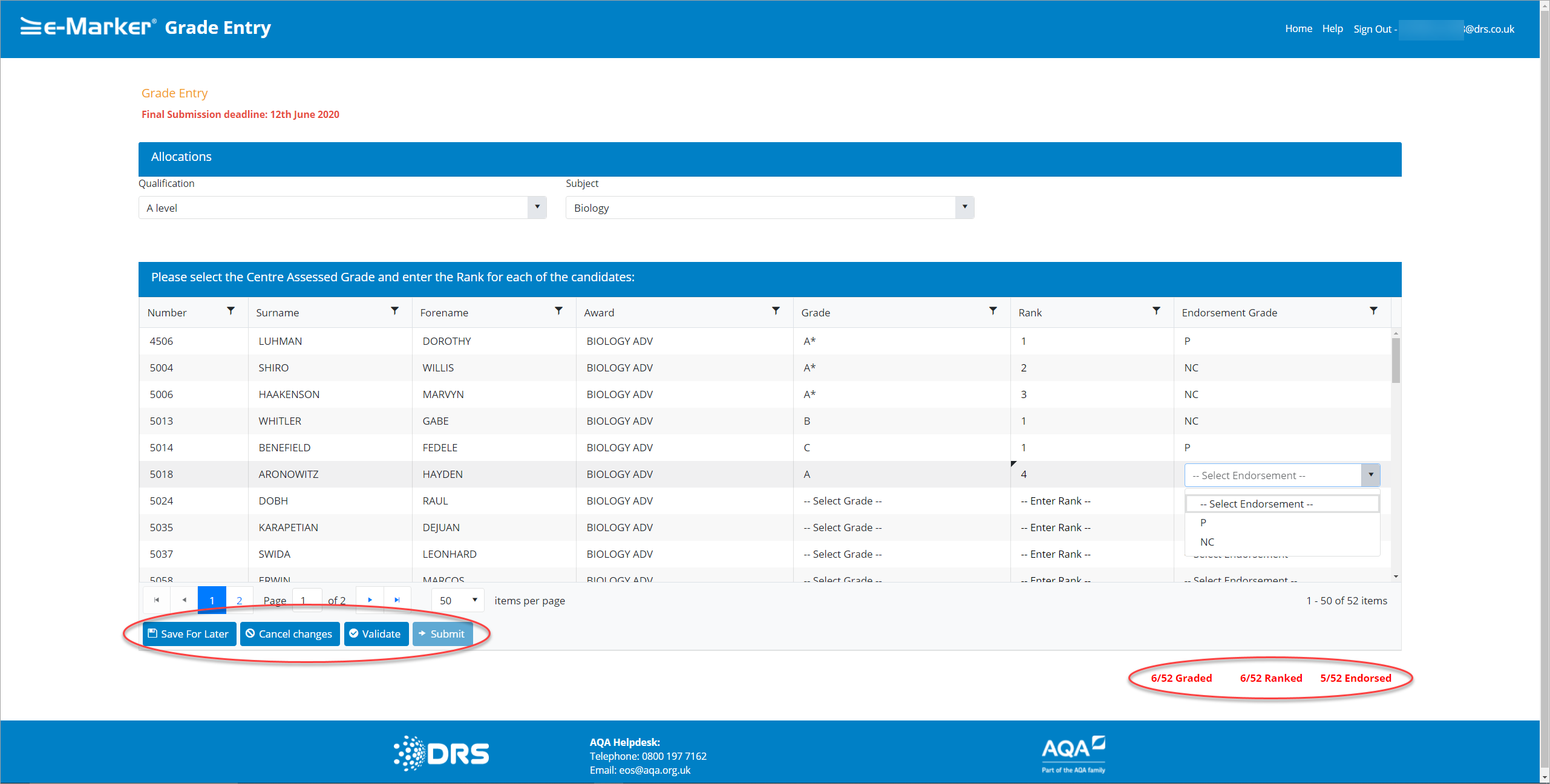
Centre Administrator - Status Bar
- Clicking the Save for Later button to save the details but not move to the next stage.
- Clicking the Cancel Changes button to discard any changes since the last save and the table is updated accordingly.
- Click the Validate button which checks for Duplicate Grade/Rank combinations across the Awards for a Subject, because Duplicated Ranks are not permitted across the same Grade for a Subject.
- Clicking the Submit button displays a confirmation message, click the Yes button to submit the details, or click the No button to close the pop-up and return to the Grade Entry screen.
Note: The Submit button is only enabled when the Validate button has been clicked and the entire cohort has a Grade and Rank, and Ranking has no Grade/Rank Duplicates). Once confirmed, the Centre/Subject set is submitted to the Award Body.
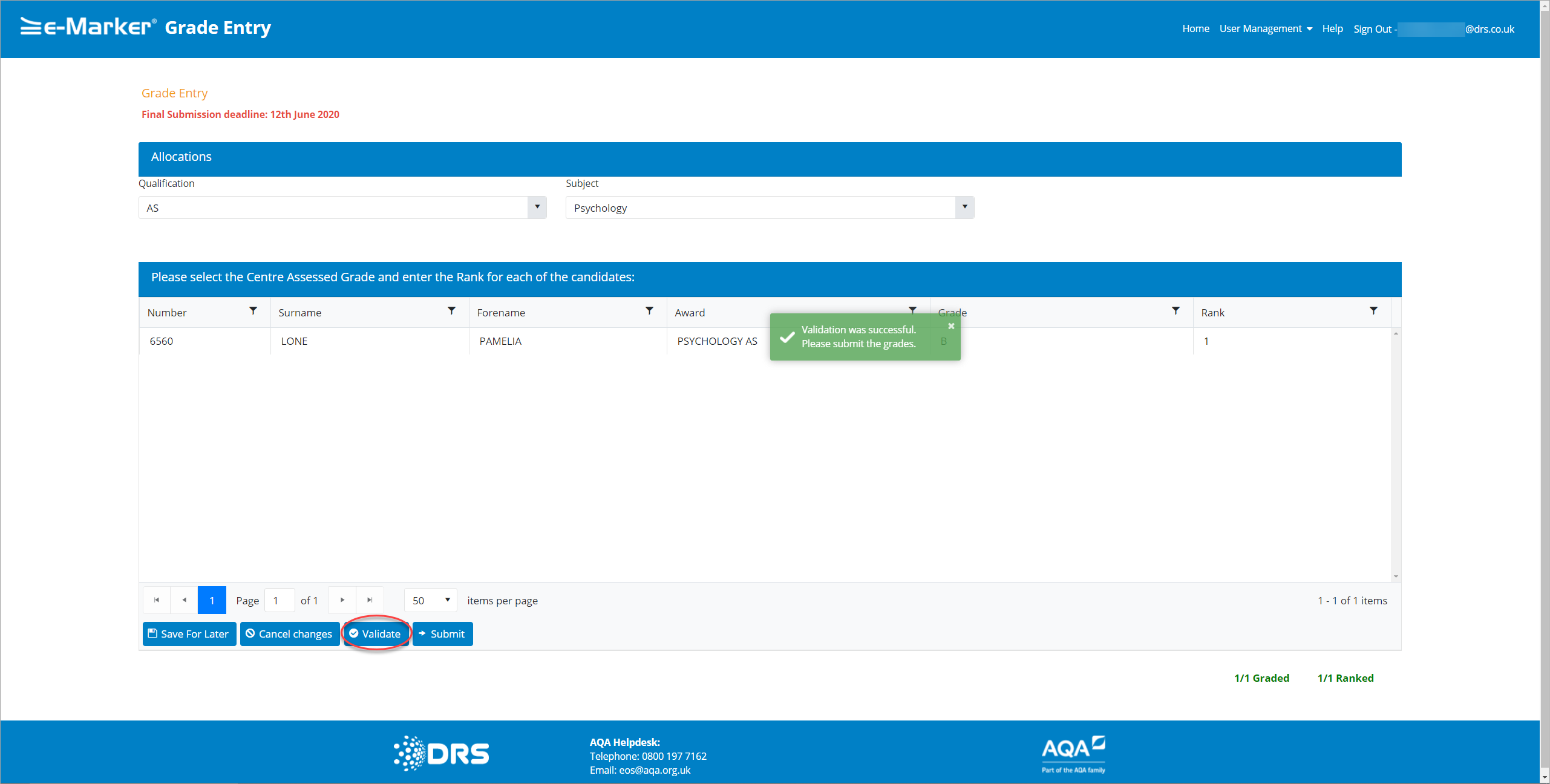
Centre Administrator - Validate
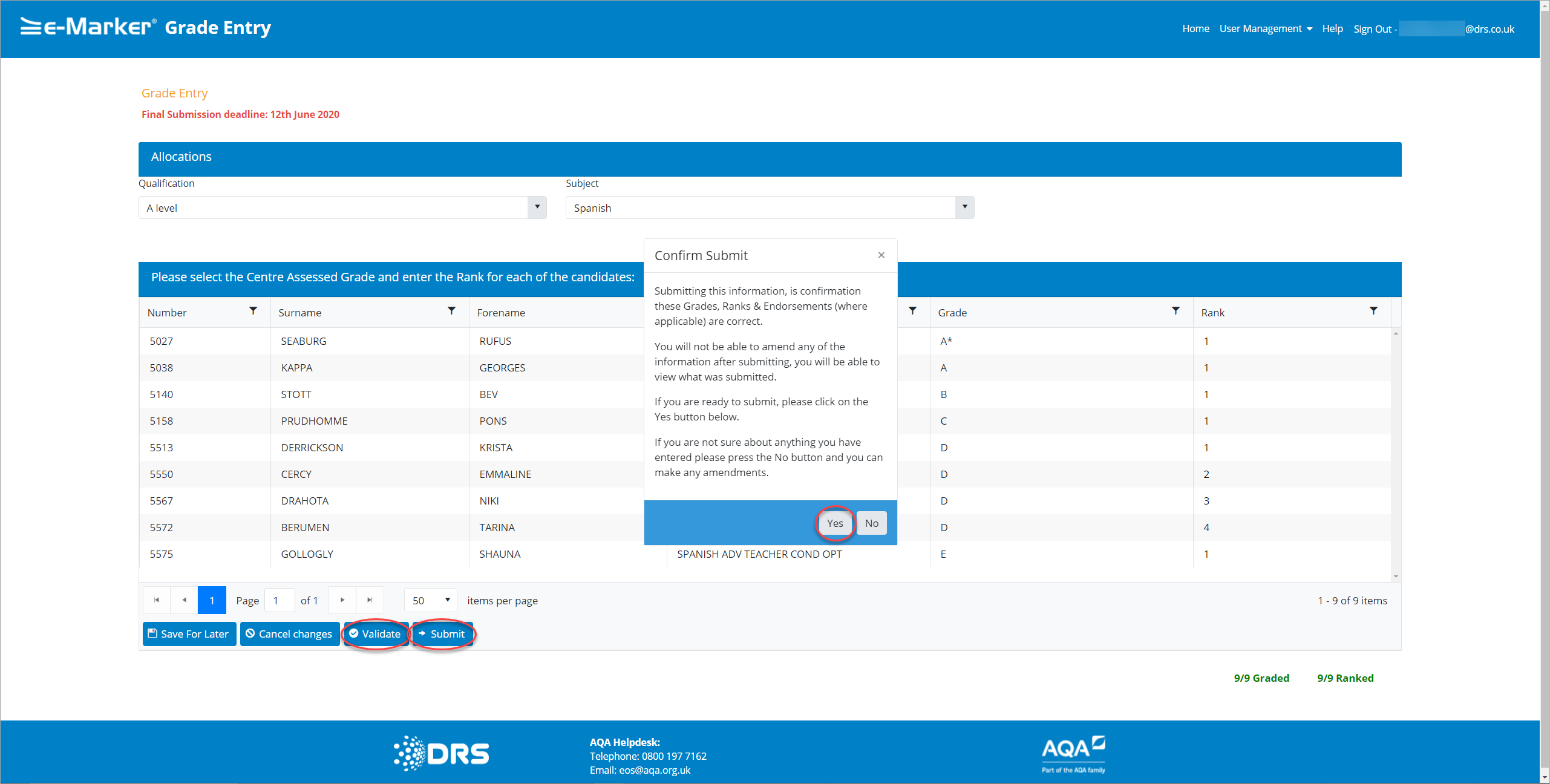
Centre Administrator - Confirm Submit
The Grade/Rank is submitted and if the Submission is successful, the following message is displayed:
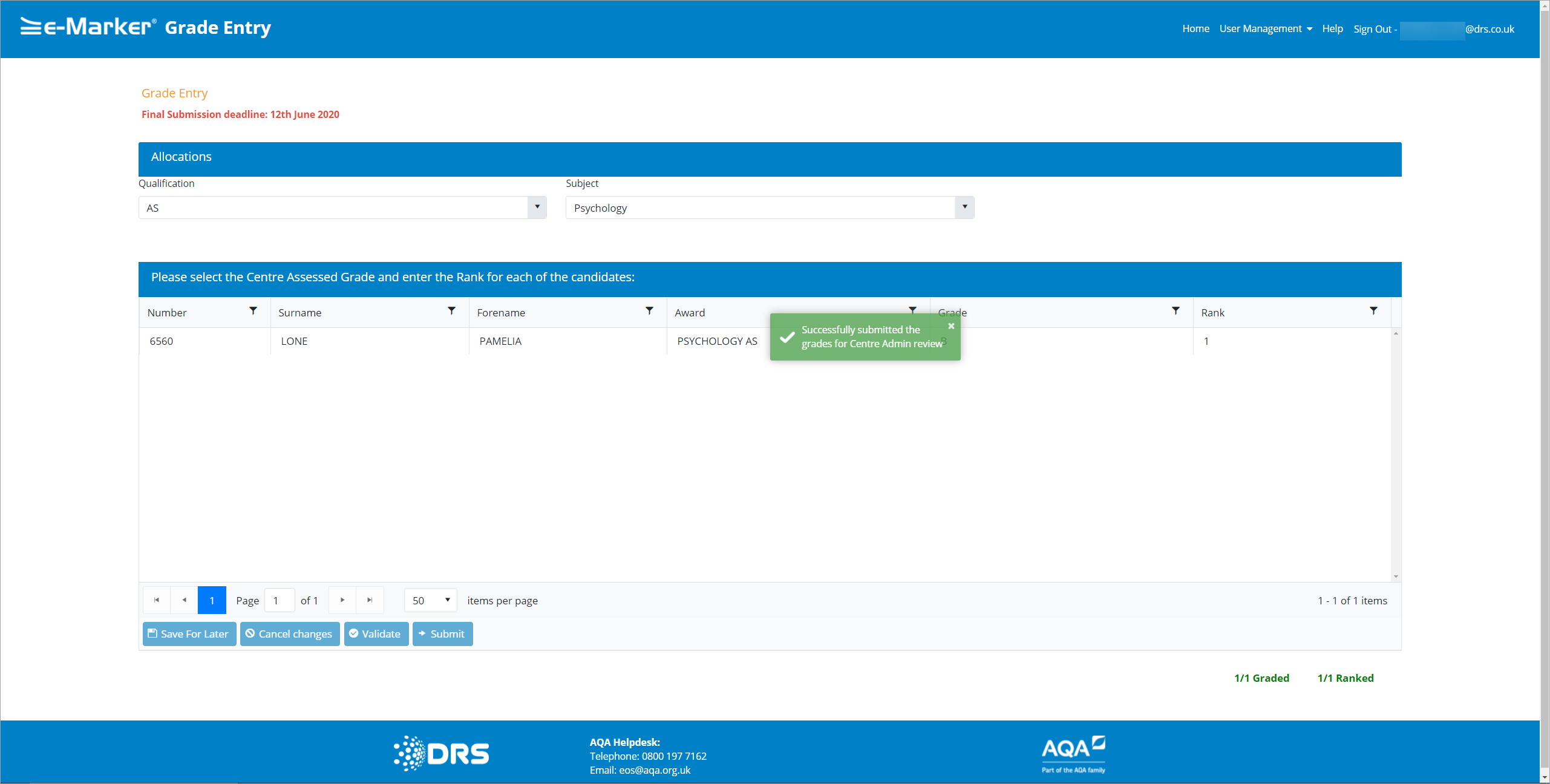
Centre Administrator - Confirm Submit
Warning: You cannot edit the Grade/Rank after it has been submitted. If you want to amend details, you must unsubmit the Subject.
If you want to edit a Grade or Rank for a submitted Subject, you must unsubmit it. The following section explains how to do this.
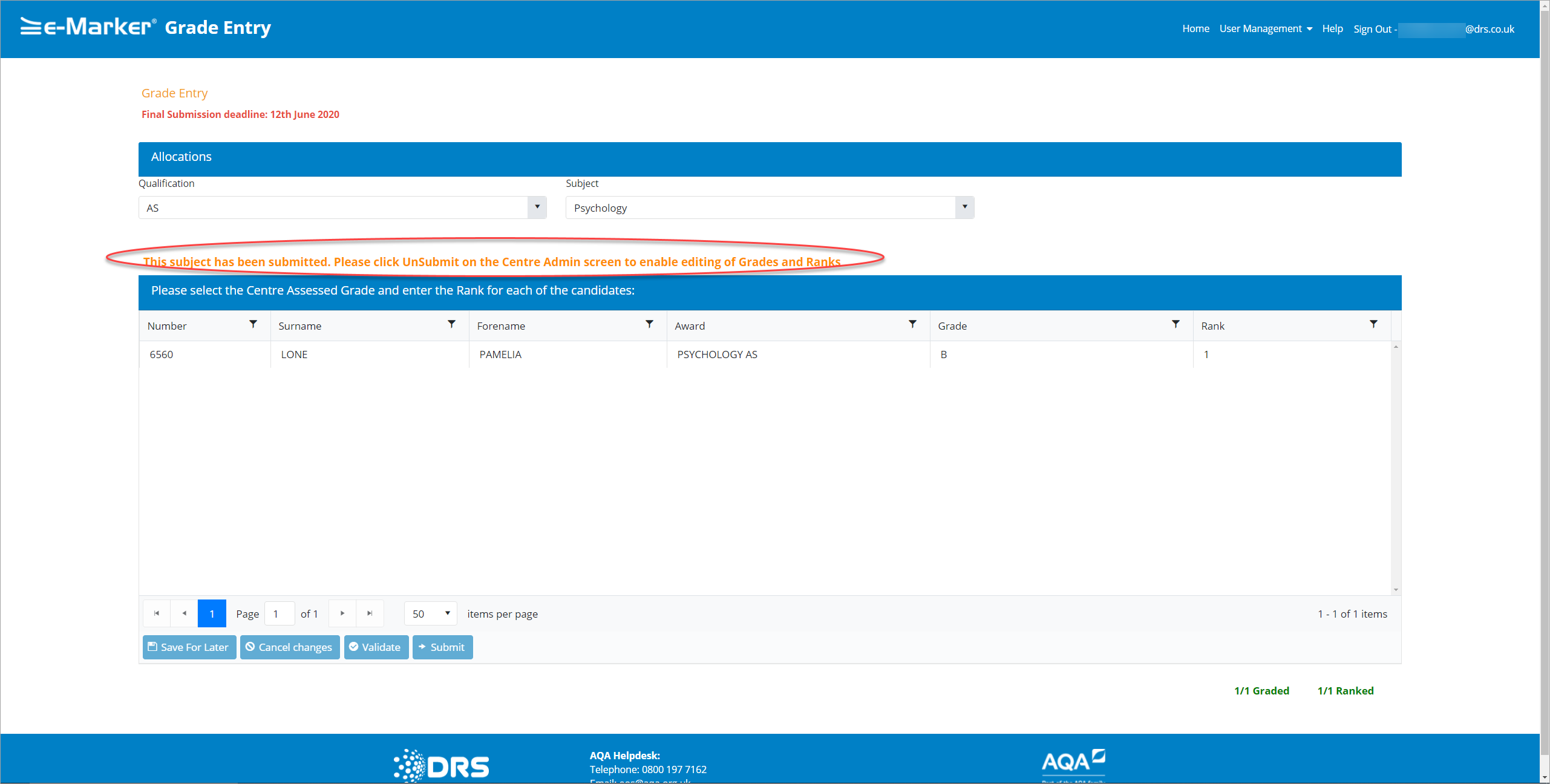
Centre Administrator - Unsubmit Message
Unsubmitting a Grade Entry
Centre Administrators can use the Unsubmit button to roll back Submissions, which enables the editing of the Grade or Rank.
The Unsubmit button can perform two Actions:
- The Centre Administrator can roll back the Submit action by clicking the Unsubmit button when the Centre User’s Submission is not approved. This returns the Submission to the Centre User, so they can re-edit and re-submit it. The Submitted by User status is updated to 'No' and the Submitted to AQA status is also updated to 'No' (the Subject is no longer exportable).
- In addition, the Unsubmit button can be used when the Subject has been submitted to the Awarding Body (Final Submission) up until when the Subject has been exported. The button is visible up until the Subject/Centre has been exported. The Submitted by User status is updated to 'No' and the Submitted to AQA status is also updated to 'No'.
To unsubmit Grades as Centre Administrator, for a selected Centre/Subject, follow these steps:
- Open the Centre Administration Home Page screen.
- Locate the submitted Subject that you want amend on the table.
- Click the Unsubmit button to perform the Unsubmit action.
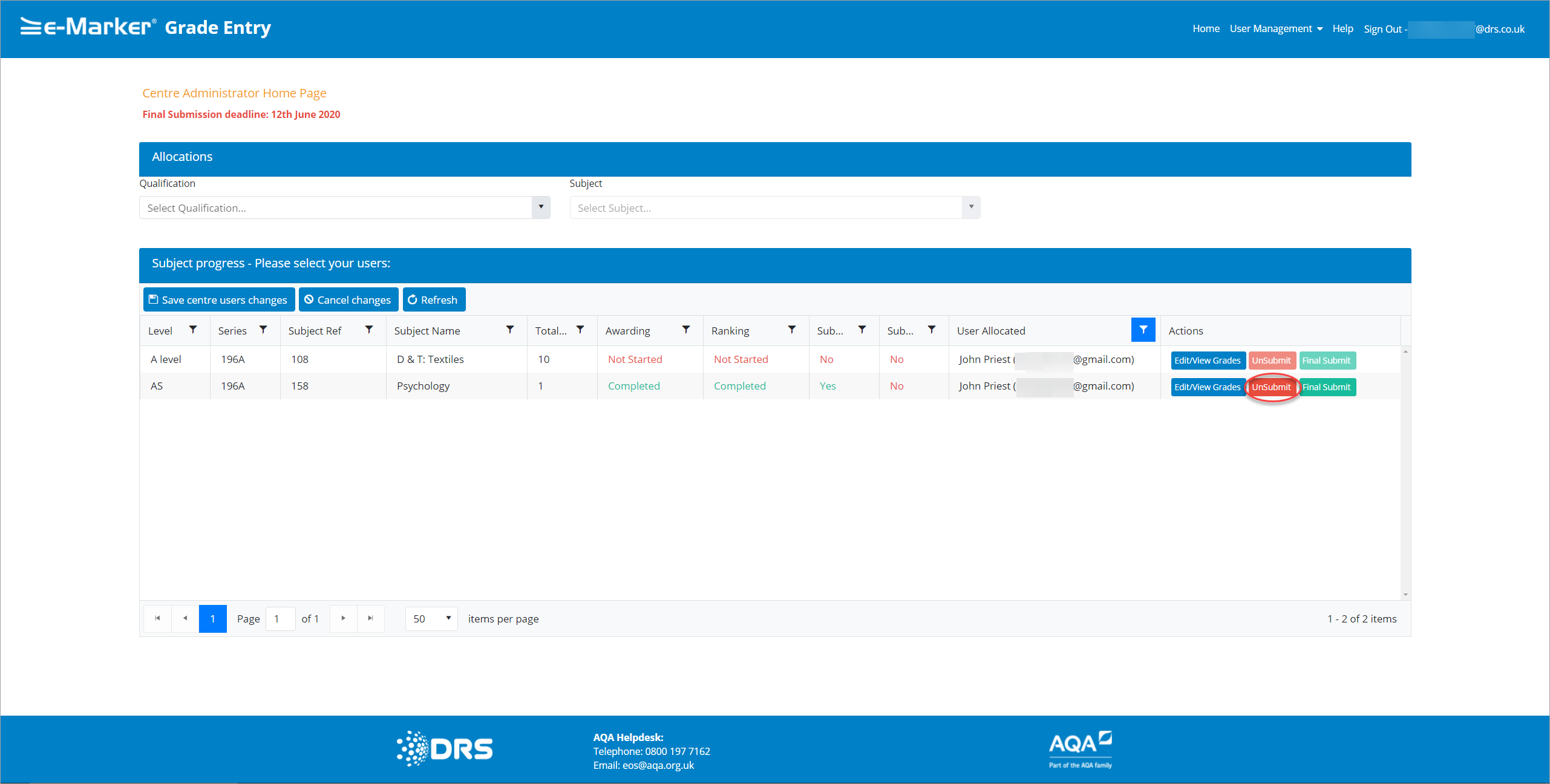
Centre Administrator - Unsubmit
The Unsubmit Grades pop-up is displayed.
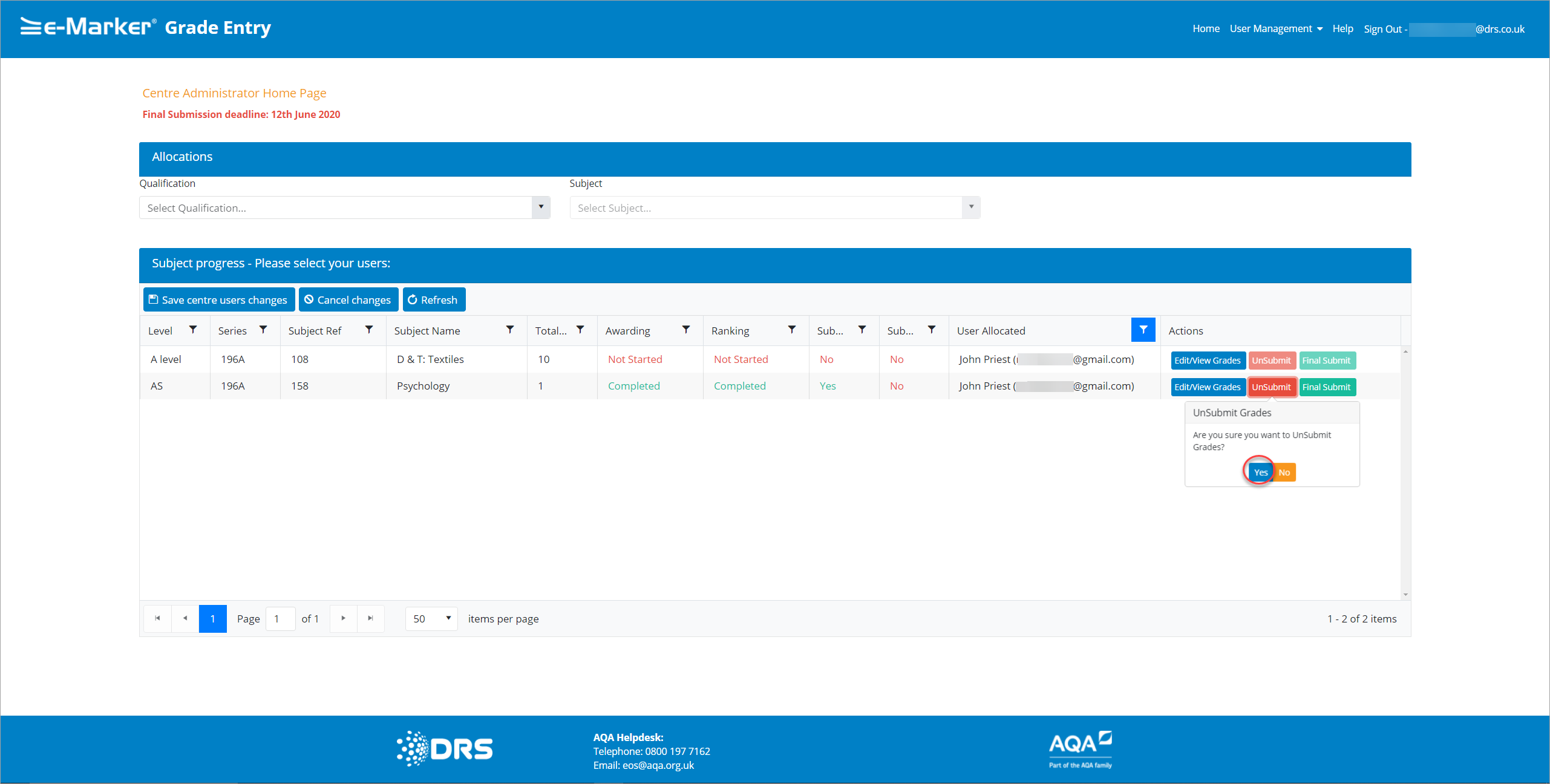
- Click the Yes button to unsubmit the Grade/Rank, or click the No button to cancel the process. If you unsubmit a Grade/Rank, the Centre Administrator Home Page refreshes with the record's Unsubmit status removed.
|
Copyright ©2020 DRS Data Services Limited. All rights reserved. |